Download NCALayer for Mac OS X from NCA of the RoK website. Open the NCALayer.dmg icon. Drag NCALayer icon to the “Your programs” folder.
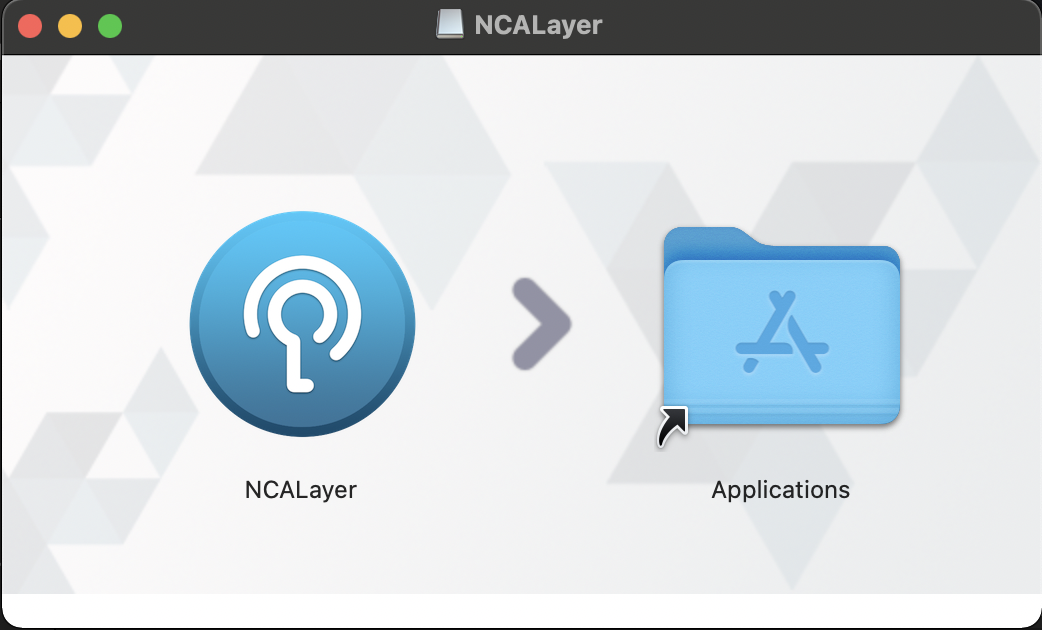
After the process completion, NCALayer will be available for launch in “Applications” folder,
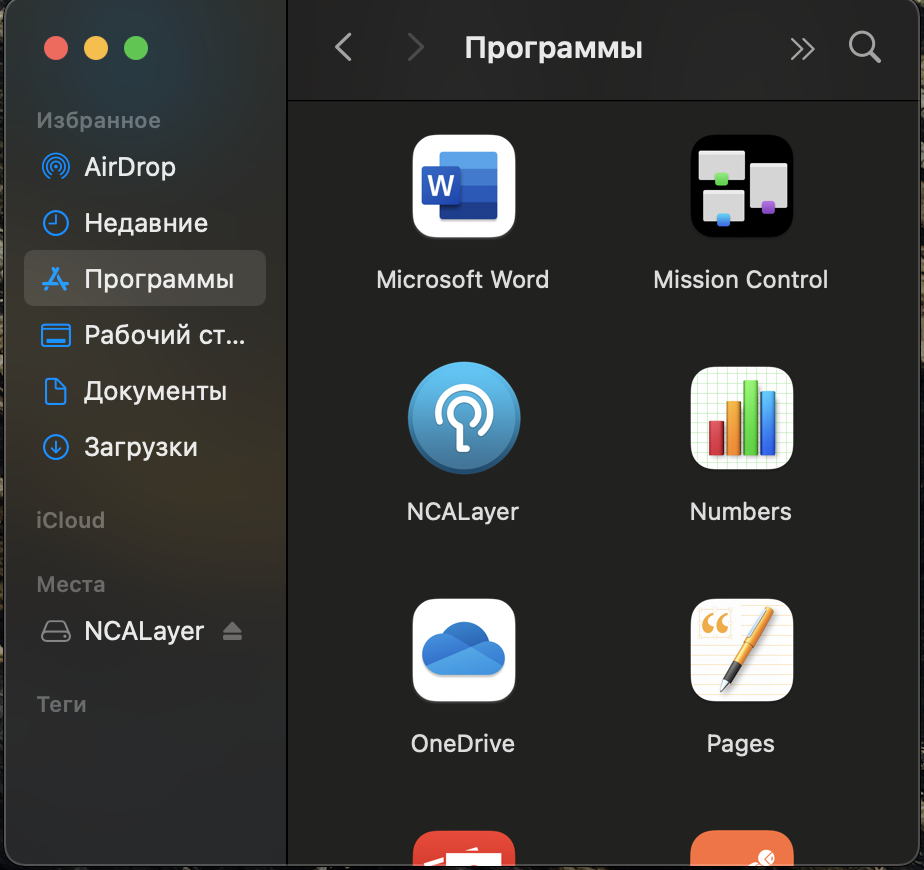
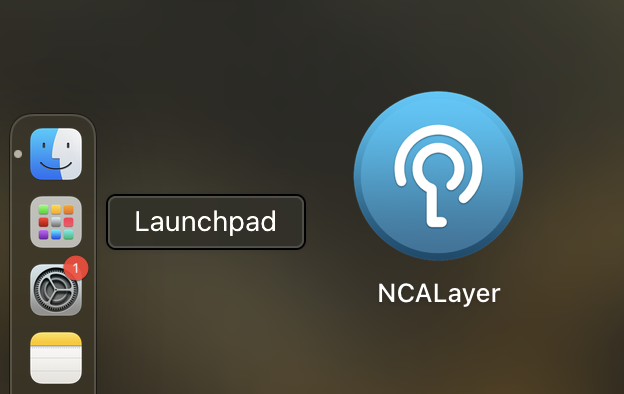
and also via Launchpad.
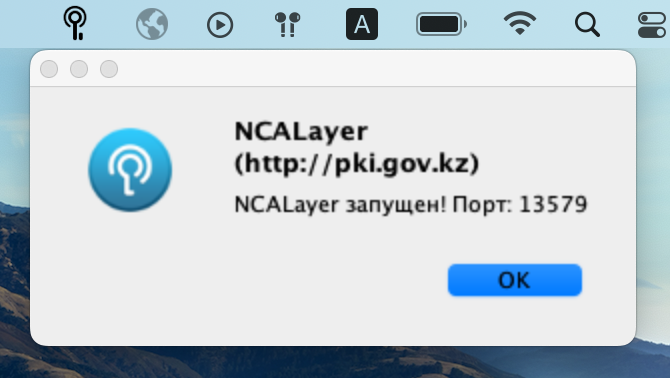
Run NCALayer. The following notification in system tray will notify on the successful launch of NCALayer.
Configuration of trust for root certificates
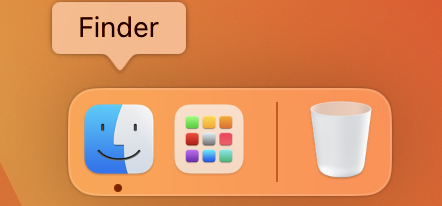
After startup, NCALayer will automatically install the necessary root certificates in the system storage. However, to work correctly, you need to set up trust for the root certificate. To do this, launch the Keychain application. Find the app through the Finder.
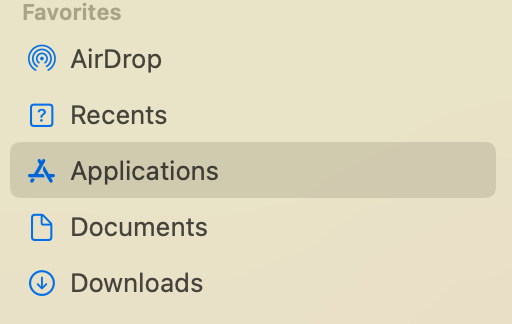
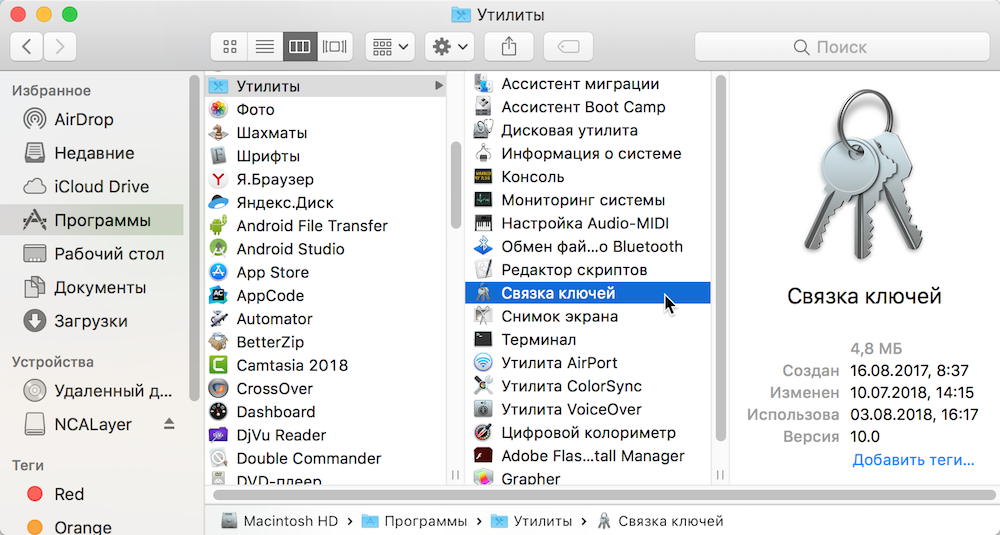
Go to "Applications"
Find the search icon and click on it:
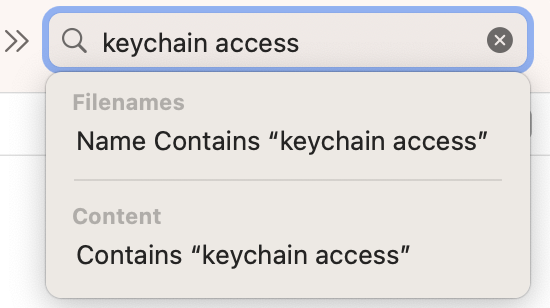
Type Keychain access in the search
Open the keychain
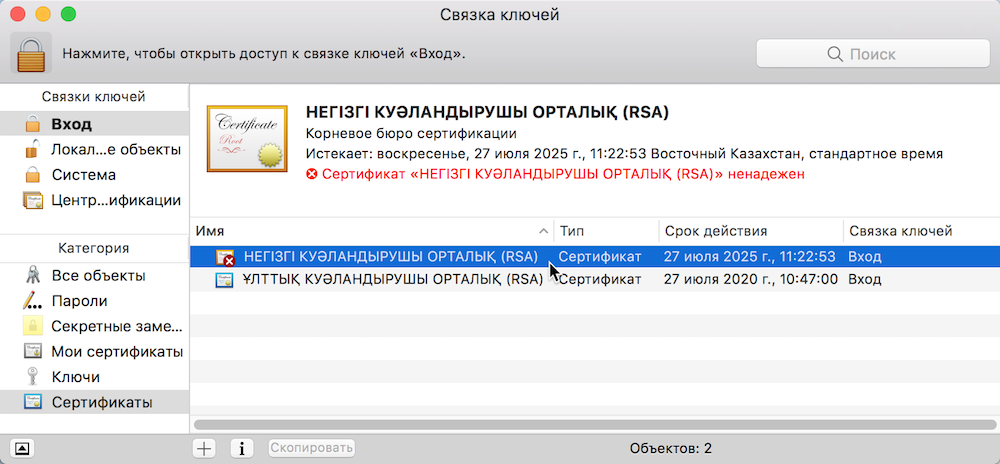
In the left sidebar of the application window, select "Login", and at the top in the "Categories" field, select "Certificates".
In some cases, the certificate does not indicate a red cross, check the certificate by opening it with a double click!
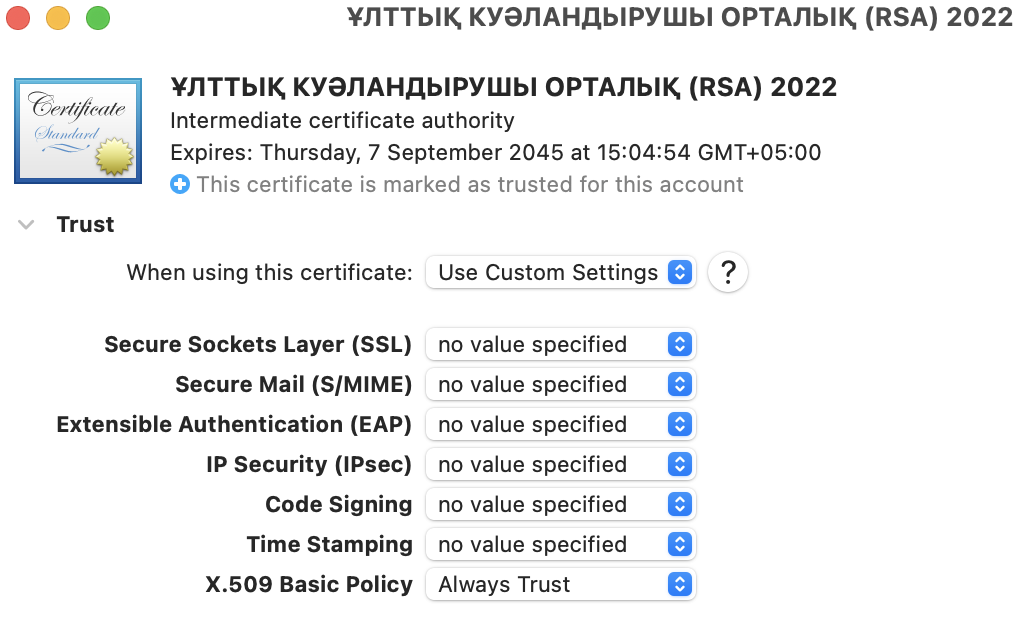
Open the certificate "Ұлттық куәландырушы орталық (RSA) 2022" by double-tapping. Click on the triangular icon to the left of the "Trust" label, and the list will open. Click on the drop-down list to the right of the item "Standard X.509 Algorithm" and specify "Always trust".
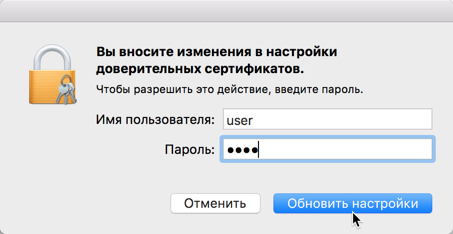
Close the certificate window, after which the system will ask you to confirm your actions by entering a password. Enter the password and click * "Update settings"*.
Then, open the certificate "Негізгі куәландырушы орталық (RSA)" by double-clicking. Click on the triangular icon to the left of the "Trust" label, and the list will open. Click on the drop-down list to the right of the item "Standard X.509 Algorithm" and specify "Always trust".
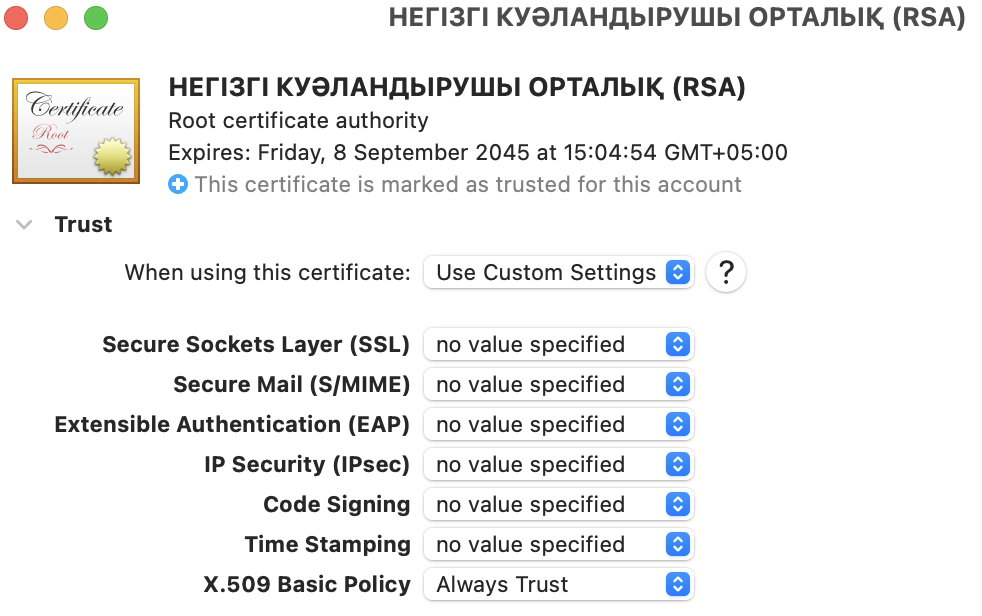
Close the certificate window, enter the password and click "Update settings".
If NCALayer does not start, find the Finder system application on the bottom panel (Dock).
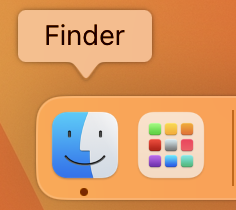
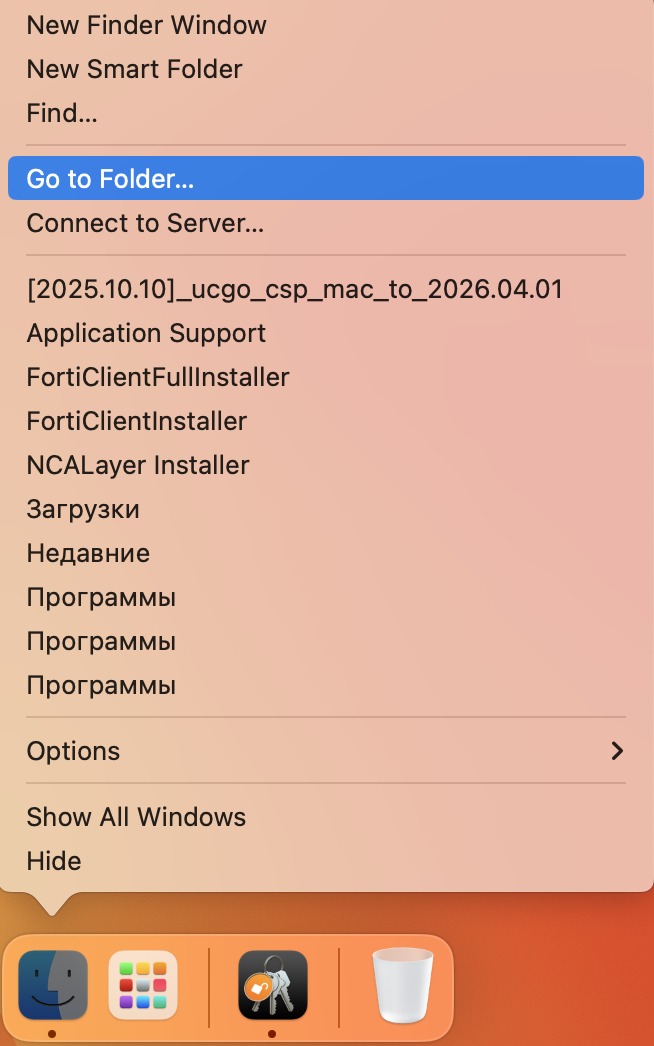
Click on the Finder icon with two fingers on the trackpad (or right-click) and select "Navigate to folder...".
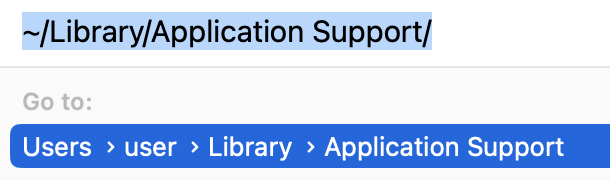
Enter the path: ~/Library/Application Support/ and press Return (Enter).
In the folder that opens, find the NCALayer directory and move it to the trash.
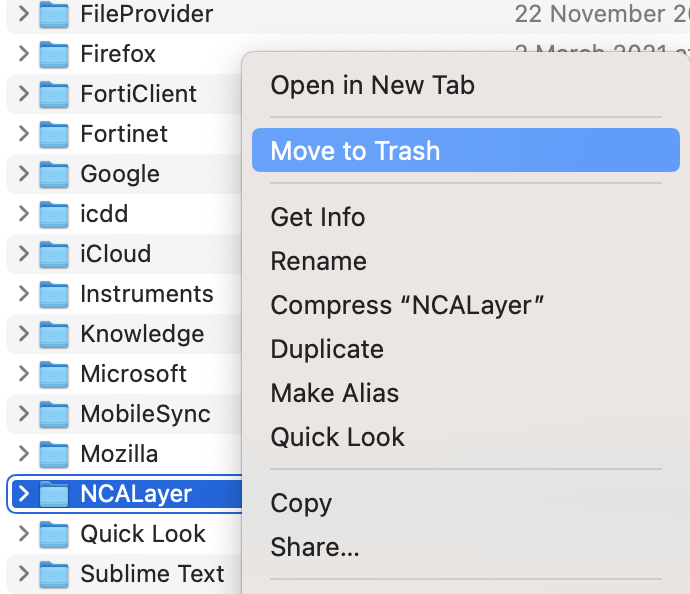
Shut down NCALayer: On the top menu bar, find the NCALayer icon and select Exit.

Restart the NCALayer app.
The NCALayer app is ready to work.